Tuesday, February 28, 2012

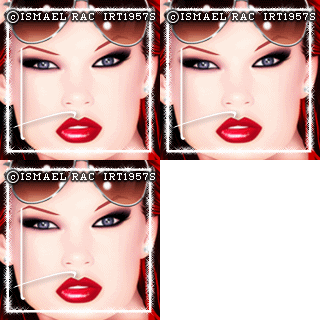
New Tag Emo Angel

Created with Tiffany Toland-Scott Art and scrap by Ladyhawwk Lhd. Both can be purchased at Creative Design Outlet HERE.

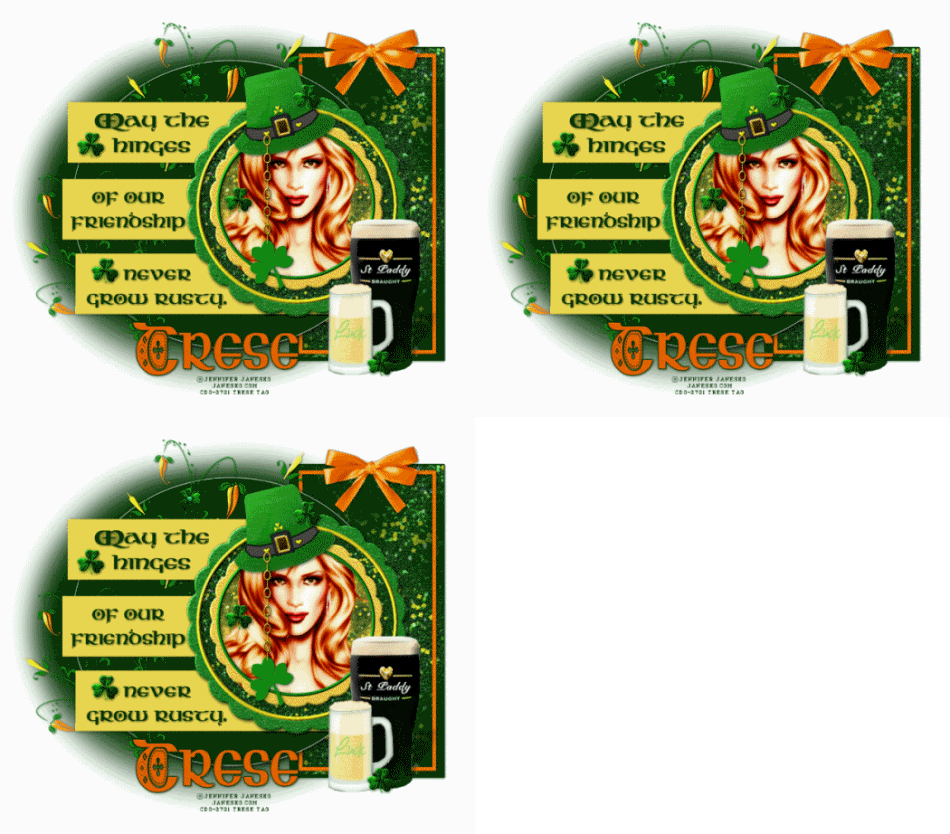
St. Patty's Friendship Tag


Created with FTU kit by Bubble's Dream, you can find it HERE and the amazing art of Jennifer Janesko. You can purchase her tubes HERE at Creative Design Outlet. Please support the arts and do not use her tubes without a license.

New Haven Template Challenge Tag


Come join us at the Haven for fun challenges and good friends

New Tag Flying Eyes

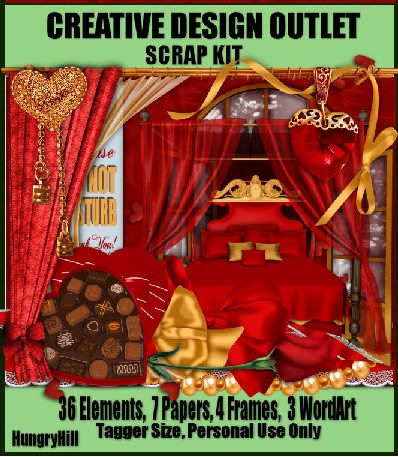
Tag put together with Hungry Hill's sweet kit, Room Service. You can purchase this kit along with the art which is Janice Leotti at Creative Design Outlet HERE.

Rac Forum Set


Rac Forum Set made for weekly challenge in the Haven. Come join our forum, we have a wonderful community of taggers and tut writers dedicated to learning from each other and honing our skills.

Where PSP and Friends come together.


Monday, February 27, 2012

She Talks to Angels Tutorial


This tutorial was written by me on February 27, 2012. Any resemblance to any other tutorial or tag is pure coincidence. Please do not claim my work as your own and certainly DO NOT post my tutorials on any website, blog or forum without permission from me. My email is tresetags@gmail.com or you can find me on facebook through my link on this blog. I wrote this tutorial with the assumption that you have a working knowledge of PSP and its components. It was written in PSP 9, but should be compatible with most versions.

What you will need to accomplish this tutorial is listed below:

This beautiful kit by Hungry Hill, French White. You can purchase it HERE at Creative Design Outlet. Thank you Alison for you talents.

Tube by the amazing Tiffany Toland-Scott. You can purchase all of her tubes HERE also at Creative Design Outlet. Please support the arts and do not use her tubes without a license to do so.

Brush...which I have supplied HERE. It's a .png image and will have to be put into your PSP brush file. Open the .png image into PSP...go up to File/Export/Custom Brush and save it there.

Font is Turbayne Running and can be downloaded HERE.

For the scene in the window I used a mist I got from a Yahoo group years ago. Anything with the same colors would do. Be sure it's not copyright protected.

A small sparkle or a sparkle brush.

Eye Candy 4000

It's always a good idea to read completely through any tutorial you're going to attempt so you know what to expect and how to organize.

For any tool or plugin I use in my tutorials change only what I teach you to change, the rest leave on default.

Let's begin.

Start by opening a 750 x 750 new white image. We'll resize later. Open your tube and elements. You can use my image as a reference for what I used. Copy and paste the large square decorative frame into your working image. Add a slight drop shadow. Duplicate it. On the duplicated frame go up to Adjust/Hue & Saturation/Colorize and use these settings: Hue 149 and Saturation 38. Now go to your tools and get your selection tool, set it on ellipse and change your feather to 88. Going around the edges and different areas of the frame select small parts and then hit delete only once. For areas where you want more of the color underneath, hit delete again. Go up to selections/select none.

Next copy and paste the mirror on top of that frame you just worked with. Add a slight drop shadow and duplicate it. Do the same as you did for the square frame to expose the colors underneath...only in the middle select about 40% of the inside of the mirror and hit delete a couple of times. Copy and paste the window frame underneath the top mirror layer. Resize it to fit inside the mirror using your raster deform tool. Add slight drop shadow. Copy and paste your 'outside' scene underneath the mirror layer and use your eraser tool to delete any of the mist or tube which is outside the window frame.

Now you will copy and paste your chandelier over your window frame layer. Use your raster deform tool to resize it. Do not add a drop shadow. Using your small sparkle brush or your small sparkle tube place either on each part of the lights where they are the brightest.

Next copy and paste the rest of your elements and your tube. You will notice that for the table beside the chair, I done the same as I done on the frame and the mirror. Colorize your chair as you did before with Hue and Saturation using the same settings. Don't forget your drop shadows.

When placing a tube to sit in a chair or on anything, pay special attention of the size of each making sure they are relevant to one another. If the tube has a hand which appears to be resting on something...its hand should rest on the object it is sitting on or it will appear to be floating...you have to ground your tube to its surroundings.

Next, go to the very bottom of your layer palette and select your backgroung layer and then add a new raster layer. Flood fill this layer with a dark color from your tube or elements. Using your selection tool with the same settings as before with feather at 88 select around the very edge of the square decorative frames. Go up to Selections/Invert and hit delete.

Now add a new raster layer over this layer and using my image for reference use your brush on one side...duplicate this brush layer and mirror it. Then duplicate it again and rotate 90 degrees, place this layer at the bottom of the frame and duplicate/mirror again.

Add your name, then go to Effects/Plugins/Eye Candy 4000/Gradient Glow and use these settings:

Basic Tab
Glow Width....4.51
Soft Corners.....25
Overall Opacity.....100
check draw only outside selection

Color Tab
Select Black Halo
change your colors to a gold color from your image
Opacity.........100

Add your copyright making sure it's legible, resize and you're done.

Thank you for trying my tutorial. I hope you enjoyed it and maybe, hopefully learned something. I appreciate any feedback and really need to know if I have broken links. Like any tut writer, I love to see results from my tuts...please feel free to contact me with your results.

Love and Blessings,

Trese


Sunday, February 26, 2012

Cluster with Hungry Hill's Room Service

You can download this cluster HERE.


And purchase this fabulous kit HERE

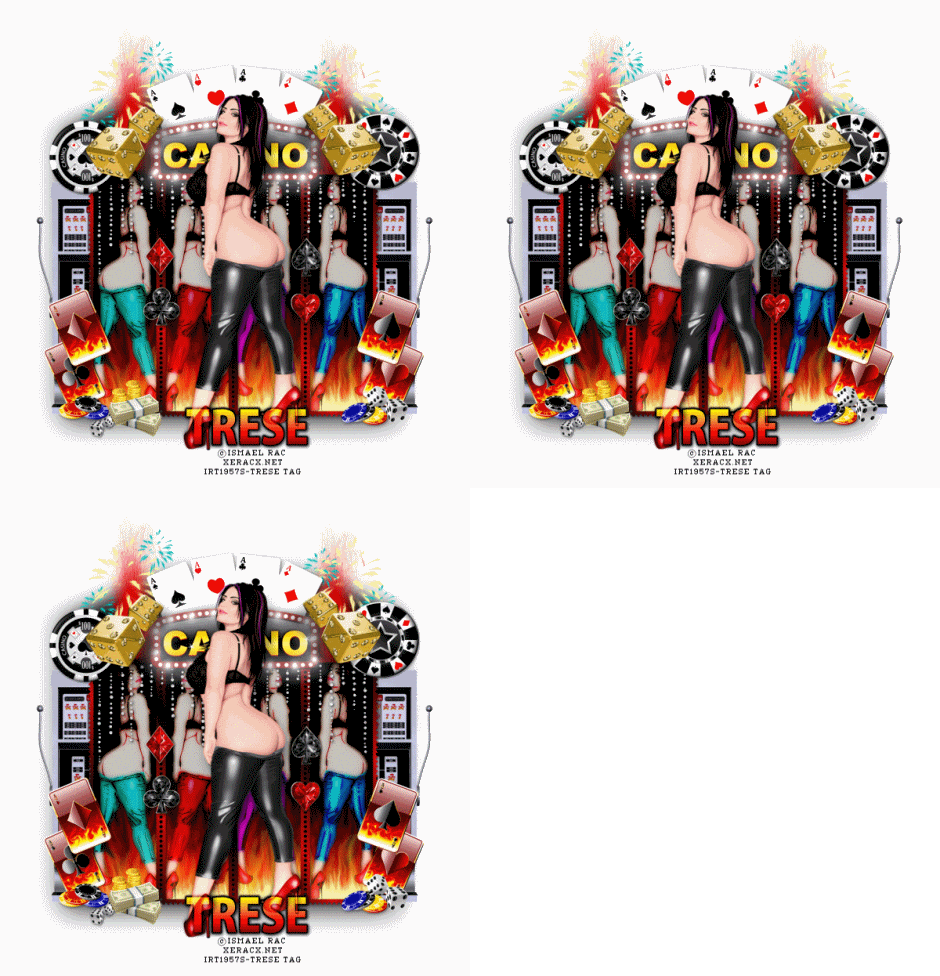
New Rac Tag

You can purchase Rac's tubes HERE. Please support the arts and do not use his tubes without a license. You can also purchase this fun kit by Rebellious Scraps HERE at Scraps & the City...called Casino Night.

Saturday, February 25, 2012

New Tag Chocolate Affair

Put together with Hungry Hill's sweet kit..Room Service which can be purchased at Creative Design Outlet HERE along with her other amazing kits...Thanks Ali

Friday, February 24, 2012

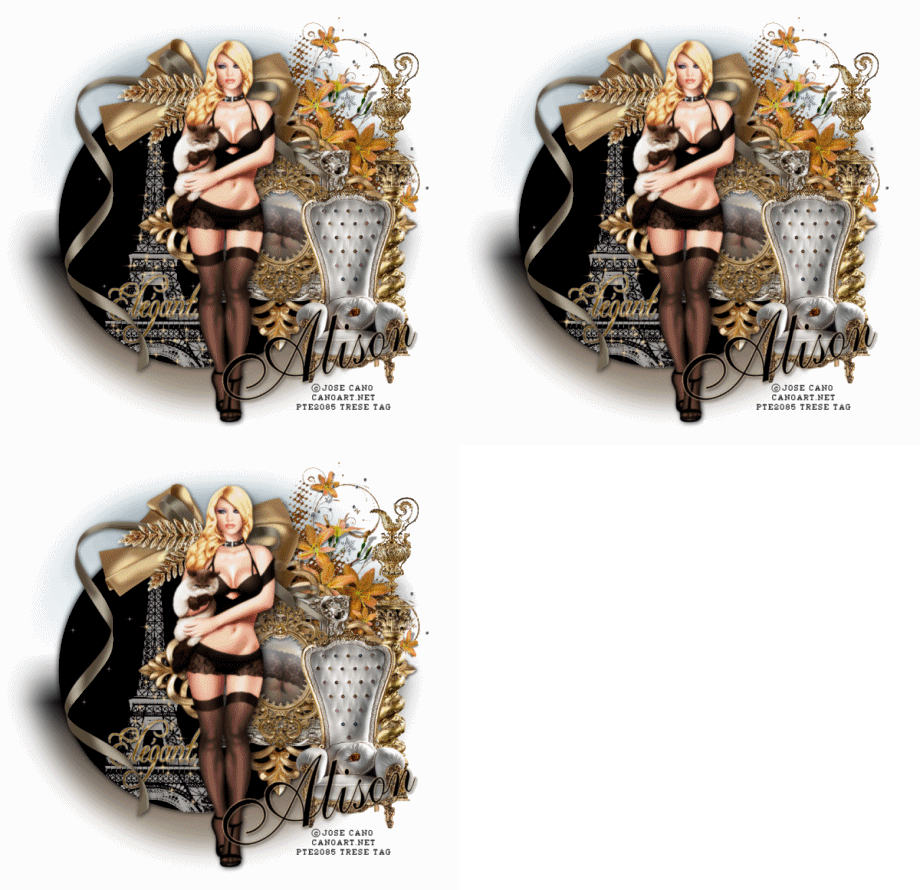
J'aime Paris


J'aime Paris

I was blessed to be able to go to Paris back in 2005. What a magical place. I will never forget being there and hope to go back again. At night the glimmering 10 minute light show is turned on every hour. At least it did when we were there. I think it depends on the seasons and of course the time of day as to when it starts and it literally glimmers.

This tutorial was written by me on February 24, 2012. Any resemblance to any other tutorial or tag is pure coincidence. Please do not claim my work as your own and certainly do not post this or any of my tutorials to any website, blog or forum without permission from me. My email is tresetags@gmail.com or you can find me on facebook by clicking on the link on the right side of this page. I wrote this tutorial with assumption that you have a working knowledge of PSP and its components. It was written for PSP 9, but should be compatible with most versions.

What you will need to accomplish this tutorial is listed below:

This beautiful kit by Hungry Hill...French White you can purchase at Creative Design Outlet HERE. Thank Ali, you've outdone yourself again.

Jose Cano tubes or tubes of choice, you can purchase his tubes at PSP Tubes Emporium HERE. Please support the arts and do not use his tubes without a license.

Eiffel Tower brush, you can find Photoshop brushes HERE. You will need something to convert Photoshop brushes to .png. I recommend abr viewer, you can download it free HERE.

Star Brushes.

A pretty flower element.

Font...I used Allegro, you can get it HERE.

I recommend you read completely through this or any other tutorial before starting. You are aware of what to expect and can get better organized.

Naming your layers as you go will cut down on confusion. I highly recommend you do this for this tutorial.

Ready to get started? Good, me too...let's go.

With PSP opened, open all your elements and tubes. Use my image as a reference for what elements to use. I used three of the frames and used my raster deform tool to fit them together. The bottom frame was rotated at a 45 degree angle. Open a 750 x 750 new white image and copy and paste those three frames into it and do as I just described. Add a slight drop shadow to each frame layer and them merge them together. Drag them slightly to the right of your working image. Beneath this frames layers draw a large black circle. Deselect. Above this large black circle draw a small elipse using a silver gradient in the middle of the hole of the frame for the mirror. Above this silver gradient I copied and pasted the rear end of another tube to appear as her reflection. (Cano's Golden Girl). With your selection tool set with a 42% feather draw around the rear end. Go to Selections/Invert and hit delete.

Add the rest of your elements and tube to your working image and give them all a slight drop shadow.

Go back to the large black circle layer, using your magic wand select this circle. Add a new raster layer and apply your Eiffel Tower brush. Duplicate this layer twice for three Eiffel Tower layers. You need to name these layers Tower 1, 2 and 3. BE SURE THESE LAYERS ARE NOT MOVED ON YOUR IMAGE AT ALL. When dealing with these layers select them in your layers palette to prevent movement. Using your star brush start painting stars on each layer of the three Tower layers. These stars should be a gold color. It's helpful to start with one layer and scatter your stars, leave it open, select your next layer, paint your stars, leave it open and paint your stars on your final layer. This helps with your star placement and overlapping. Be generous with your stars on the Tower layers.

Now you need to add three blank layers on top of the Tower layers. Name them Stars 1, 2 and 3. Go back down to the large black circle and select it again with your magic wand. With all of your star layers open start scattering stars on the large black circle area. Be stingy with your stars here, just need a few. These stars need to be smaller than the Tower stars and they should be white. Go to Selections/Select none.

In your layer palette, select the large black circle. Give it a drop shadow of 2 in each offset, about 62 opacity and 12 blur. Then repeat that shadow only changing -2 for each offset.

Beneath your large black circle add a new raster layer, flood fill with silver gradient. Go up to your selection tool, set on elipse, feather set on 70%. Select around the outside areas of your black circle on this gradient layer. Then go to Selections/Invert and then hit delete.

Add name and copyright being careful to be sure your copyright is legible. On your name, be sure your antialias is set to sharp.

Now for the fun part...Animation...YAY!

When you're ready open Animation Shop. Go back to PSP and in your layer palette make sure your top two layers of stars and Tower are hidden. Hold down Ctrl + Shift and hit C (to copy), go to Animation Shop and hit Ctrl + v to paste a new image. Back to PSP. Hide the bottom layers of your stars and your Tower, unhide the middle layers of each, hit Ctrl + C and go back to Animation Shop...this time you will hit Ctrl + Shift/L to paste after current frame. Repeat this step for your last layers. Resize and save as a .gif and you're done.

I appreciate you doing my tutorial. I hope you enjoyed and learned something useful. Please feel free to contact me with any questions you may have and please let me know about any broken links.

Love and Blessings
Trese


Thursday, February 23, 2012

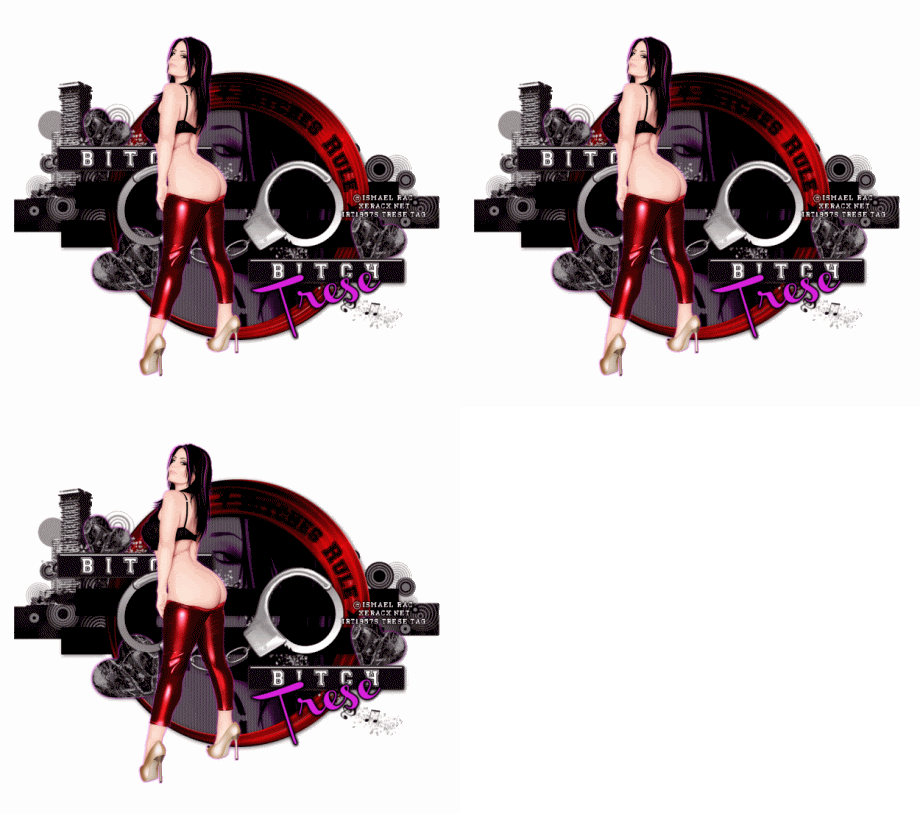
Rac Bitches Rule


RAC BITCHES RULE

This tutorial was written by me on February 23, 2012. Any resemblance to any other tutorial or tag is pure coincidence. Please do not claim my work as your own and certainly do not post this or any of my tutorials to any website, blog or forum without permission from me. My email is tresetags@gmail.com or you can find me on Facebook with the link on the right side of this page. This tutorial, as with any of my tutorials, was written with the assumption that you have a working knowledge of PSP and it's components. It was written for PSP 9, but should be compatible with most versions.

What you will need to accomplish this tutorial is listed below:

Scrap kit by Foxy's Designz - Bitch Squad - you can buy HERE
(Thanks Foxy...awesome kit)

Ismael Rac tube TRESE - can be purchased HERE along with his other tubes....support the arts and do not use his tubes without a license.

Plugins: Eye Candy 4000, dsb flux and Eye Candy 5/Impact, Screenworks by Cybia ( You can download Cybia plugins free HERE) and finally Xero.

Font: Channel found HERE

Brushes: Some sort of "Urban" or "City" brushes. You can find tons of great brushes HERE, but these are Photoshop brushes and you will need some way to convert them to .png to put into PSP. There are a couple of programs available, personally I have used abr viewer 2.0 and never had problems with it. You can download it HERE.

Let's get started......

It's always a good idea to read completely through a tutorial before you attempt to do them so you know what to expect and know how to get organized.

You may want to name your layers so as not to get confused and frustrated as we will have quite a few layers with this tutorial.

For any of the plugins we use only change the settings I recommend and leave the rest on default settings.

Open PSP, duh...open all your elements from Foxy's rad kit into PSP...you can use my image as a reference for which elements I used. Open Rac's freakin amazing tube as well and choose the colors in the layers you wish to use. You can use any color you want. As you can see, I chose the red and simply changed the color of the large circle to red by going up to Adjust/Hue and Saturation/Colorize.

Once you have changed the circle to your desired color, copy and paste your tube into a 750x750 white new image. Then copy and paste your tube on top of that layer. Go back to your circle layer and use your Raster Deform Tool to resize your circle. I have found this tool to be one of my most favorite tools in PSP, it doesn't distort your tube or elements when you resize them using it.

Next you will click on your background layer and draw a large black circle using your preset elipse tool set to circle. Convert it to raster layer and then copy and paste the close up Rac tube above this large black circle. Again, use your Raster Deform Tool to resize your tube to fit nicely inside the circle. Select the large black circle layer again and click on it with our magic wand. Then go up to Selections/Invert...select the close up tube layer and hit delete to erase the outer portions of the tube outside your circle. Then go to Adjust/Hue and Saturation/Colorize. Colorize your tube to match the colors you've chosen for your tag. I used Hue 210 and Saturation 163. Now go to Effects/Plugins/Xero/Radiance and use these settings:
Strangeness...128
Charm...50
Truth...55
Beauty...131
On this same layer go to Effects/Plugins/Screenworks/Dot Screen.

Now this part can get a little tricky, but it's not difficult at all. Using your Rectangle Tool, draw two wide but thin rectangles across the top of the large colored circle and offset them...again, use my image as a reference. Merge them together and duplicate then drag the duplicated layer beneath the large colored circle. Using your eraser tool delete the right side of the top rectangle to expose the large colored circle and do the same on the left side but erase the bottom rectangle to expose the large colored circle. See, not so hard.

Our next step is to select the large colored circle layer add a slight drop shadow, duplicate it three times, hide the two top layers and select the original large colored circle layer in your layer palette because you do not want to move any of these layers at all. Go to Effects/Plugins/dsb flux/Spiderweb and use the following settings:
Rays....3
Rings....5
Merge...50
Hide the original layer, select the middle duplicated layer and unhide it. Go back to the same plugin and use these settings:
Rays....3
Rings....7
Merge...50
Hide this layer and select the top duplicated layer and unhide it. Go back to the same plugin and use these settings:
Rays...3
Rings...10
Merge...50
BE SURE YOU DO NOT MOVE THESE LARGE COLORED CIRCLE LAYERS.

Copy and paste all your elements into your working image. Use the Raster Deform Tool to resize to desired sizes. (Told you I love this tool) Add slight drop shadows to each. And yet again you can use my image for reference for placement. On the hearts and the Rac tube you're going to add a slight Corona to add more coloring to your tag. For each layer go up to Effects/Plugins/Eye Candy 4000/Corona and use these settings:
Width....5.0
Flare size..14.0
Stretch....100
Waver...23
Blur...0
Overall Opacity.....51
Color will be your chosen color for your tag, I used dc0ed5. On your main tube use the same Xero settings as above.

We're getting close, just a few more steps. Now you will select your background layer and add another raster layer and name it Brushes. Have fun with brushes here. You can use a city scene like I used or something else altogether. I love brushes:-)

For your name use the same color you chose for your tag to be. Be sure your anti-alias is set to sharp. Go to Effects/Plugins/Eye Candy 4000/Gradient Glow and use these settings:
Basic tab:
Width...3
Soft Corners...100
Opacity...100
Check draw outside selection and color is black.
Color tab:
Black Halo
Color is black and Opacity is 100.
Then go back to Effects/Plugins/Eye Candy 4000 Corona and use these settings:
Glow Width...7.88
Flare...14.0
Stretch...100
Waver...23
Blur...3
Opacity...72
and check draw outside selection only.

Add your copyright taking care to make sure it's legible.

Now is the fun part...Animation
Open Animation Shop
Go back to the large colored circle layers...be sure the original bottom layer is open and the other two are hidden. While holding down Shift + Control, hit C (to copy)...go over to Animation Shop and hit Control + v (to paste). Back to PSP, hide the original bottom layer, unhide the middle layer of the large colored circle and do as before...Shift + Control and hit C. Back over to Animation Shop and this time while holding down Shift + Control, hit L (to paste after current frame.) Go back to PSP and repeat for the top layer. You should now have three layers in Animation Shop. Resize to desired size save as a .gif and you're done.

I hope you enjoyed my tutorial and, hopefully, learned something from it. I appreciate any feedback and I love to see the results from my tuts. Thank you for trying this and please, if you have any questions feel free to contact me.

Love and Blessing, Trese


Thursday, February 9, 2012